
Your day lives and dies by how quickly you and your team can access the right file, respond to a client, or prep for court without tech slowing you down. You’re already toggling between calendars, case files, emails, and practice software which probably don’t talk to each other. When technology assists and does not hinder, productivity goes up.
This is exactly where the newly developed Ask Copilot feature in the Windows 11 Taskbar of Microsoft aims to help.
The incorporation of this technology introduces a generative AI capability directly into the Windows desktop experience and does so within a context that does not overwhelm the user.
With all the focus on AI tools within Windows, it’s welcomed news that this addition is not mandatory. It is your choice whether you want it and how you want it to perform.
This flexibility is important to law firms that have efficiency, control, and security to balance.
Searching is Key
Lawyers dedicate a lot of time looking for files, documents, configurations, or quick answers related to software tasks, and we all know that the Windows Search is not that great.
Functions for searching in Windows assist with the location of files but lack the ability to interpret natural language questions or assist based upon a query.
Examples like:
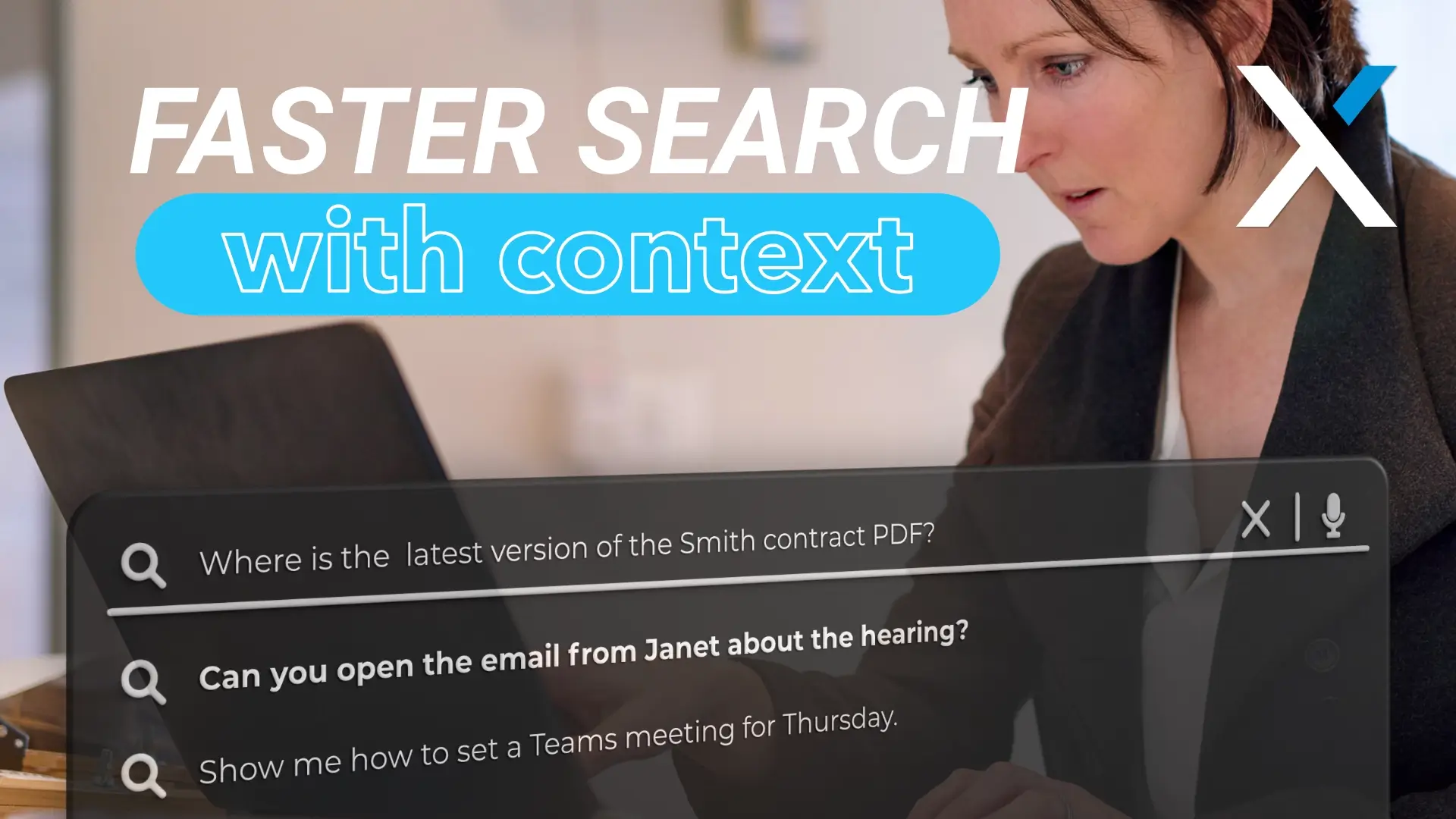
- “Where is the latest version of the Smith contract PDF?”
- “Can you open the email from Partner A about the hearing?”
- “Show me how to set a Teams meeting for Thursday.”
These aren’t simple file searches. They involve interpretation.
Ask Copilot fills that void because it allows a user to pose a natural language question and get an interpreted response.
Rather than having to click through folders or help menus by hand, the assistant may be able to provide an answer or open a file for the user or recommend a change to settings.
For law firms, this means:
- Enhanced speed for locating relevant documents.
- “Less downtime waiting to remember how to perform a task.””
- Reduction of calls or training sessions needed to accomplish normal job tasks.
- Improved employee orientation when transitioning to workstations that are remote or hybrid. It’s basically the acceleration of what already exists as far as search capability, together with artificial intelligence that understands context and natural language.
How Ask Copilot Works
Ask Copilot is a search and assistance box on your Windows 11 taskbar through which users can interact directly with AI. This complements rather than replaces the Windows search experience.
When that happens, it takes the form of an “Ask Copilot” field. Users can simply type in natural language queries or directives. In the back, Copilot relies on Windows APIs, and indeed the very capabilities Windows Search leverages, to deliver results such as applications, documents, settings, and responses relevant to the user’s context.
All users will have Ask Copilot available. However, if you also have a Microsoft 365 Copilot License you will have additional, powerful tools to access features like Voice Commands (so you don’t need to type your questions) and Copilot Vision (where it understands what is on your screen and can interact with you based on that).
These capabilities extend the assistant into a “virtual desktop helper” that understands not only what you ask, but also what you are doing. For instance, with some builds of Windows now, when you hover over an open window in the taskbar, it allows you to share that application window with Copilot and ask questions about its content.
Availability and Opt In Choice
Rollout is happening gradually, beginning with Windows Insider Program members and then eventually to all Windows users.
Ask Copilot is not forced on users by default. That is critical for law firms that might be cautious about adding new tools, especially AI ones, into their workflows.
Here’s how it works:
- Off by default: The Ask Copilot box won’t appear unless you enable it.
- Settings control: Go to Settings > Personalization > Taskbar > Ask Copilot to turn the feature on or off.
- Taskbar behavior: You can choose if the Ask Copilot box replaces the regular search field or appears alongside it.
Because it is opt in, firms can roll it out to trusted users first, test how it fits internal workflows, and then decide about broader deployment. If a firm prefers to avoid AI enabled tools, administrators can keep it off entirely.
In some Windows Insider or preview builds, users have noted that after enabling the feature, it can sometimes misbehave or not show up immediately due to build differences. Those are expected as part of preview testing and typically get resolved in later updates.
Company Use
Just because it’s available doesn’t mean you should just turn it on and let it fly. You should be strategic with it.
- Determine use case first. Identify roles and activities that can be made less repetitive by Copilot.
- Pilot with a small group. Allow the feature to be turned on for a group of users who are processing a large number of document searches and administrative inquiries.
- Train your staff. Discuss best practices in writing questions and utilizing voice or Copilot Vision.
- Review. Monitor and review the impact it makes with the pilot group, and ask them for feedback on their daily use. Adjust your policies regarding increases in productivity, comfort, etc.
Since Ask Copilot honors existing Windows privacy preferences and has the same level of access as Windows Search, there is no unexpected pipeline into private data.
In essence, the optional feature of the new taskbar allows teams to improve the way in which their Windows computer is used.
With law firms looking for efficiency as well as a reduction in friction, Ask Copilot is definitely worth looking at for a solution that can decrease clicks, increase productivity, and enable employees to focus on what truly matters.